

 0
comments
0
comments

Flag Counter

Showing posts with label LG. Show all posts
Showing posts with label LG. Show all posts
Monday, April 11, 2011


Saturday, March 12, 2011
LG Optimus Me P350 Hard Reset to Factory Default Settings Instructions
Here's a step by step instruction on how to properly Hard reset the LG Optimus Me P350 also known as LG Pecan, If you want to return it to its factory settings again.
This procedures is only advisable if the you'd experience a hang or frozen problem in your device when using or opening any applications installed.
Please note that the result of this procedure will delete all data yoy previously installed on your handset. This process may or may not delete data stored on the microSD card. Just do have a back up copy of all your important data on the device before proceeding.
LG Optimus Me P350 - Factory reset through menu settings:
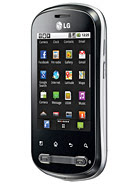 1. On the main HOME screen, select MENU
2. Select SETTINGS, then PRIVACY
3. Select FACTORY DATA RESET
4. Select RESET PHONE
5. When Password is prompted, enter it. Then
If the problem still persists, or if the phone is frozen, you may then try to hard reset the
LG Optimus Me P350 through button combination.
1. If your LG Optimus Me P350 is frozen, turn the Power OFF, pull out the battery and reinsert it back again.
2. Hold the Home and Volume Down button
3. Press and hold the Power button until the device turns on
4. Follow the on-screen instructions on how to reset your LG Optimus Me P350
Wait 'till the process finish. Once the wipe is complete, the LG Optimus Me P350 phone will then reboot to its factory fresh default state settings. All data you previously installed on it already been deleted.
This procedures is only advisable if the you'd experience a hang or frozen problem in your device when using or opening any applications installed.
Please note that the result of this procedure will delete all data yoy previously installed on your handset. This process may or may not delete data stored on the microSD card. Just do have a back up copy of all your important data on the device before proceeding.
LG Optimus Me P350 - Factory reset through menu settings:
2. Select SETTINGS, then PRIVACY
3. Select FACTORY DATA RESET
4. Select RESET PHONE
5. When Password is prompted, enter it. Then
If the problem still persists, or if the phone is frozen, you may then try to hard reset the
LG Optimus Me P350 through button combination.
1. If your LG Optimus Me P350 is frozen, turn the Power OFF, pull out the battery and reinsert it back again.
2. Hold the Home and Volume Down button
3. Press and hold the Power button until the device turns on
4. Follow the on-screen instructions on how to reset your LG Optimus Me P350
Wait 'till the process finish. Once the wipe is complete, the LG Optimus Me P350 phone will then reboot to its factory fresh default state settings. All data you previously installed on it already been deleted.
Saturday, February 19, 2011
LG Optimus T P509 Burgundy hard reset procedures
Here's the step by step instruction on how to Hard Reset the LG Optimus T P509 Burgundy, to restore its original factory default settings.
Note: Doing a hard reset is only applicable if your LG Optimus T P509 Burgundy experiencing a hang-up, unresponsive or frozen when opening or using some application installed.
Here's the following procedures:
While you opening your LG Optimus T, dialing 3845#*500# to open the internal test & settings menu. Clicking on Factory Reset menu shows:
LG Optimus T P509 Burgundy Soft Reset/Factory Reset on Menu Settings
1. On main home screen, select Menu
2. Select Settings, then Privacy
3. Select Factory Data Reset
4. Select Reset phone
5. Just enter the Password if prompted, then confirm by selecting Erase Everything
If your LG Optimus T P509 Burgundy is frozen, hang-up or unresponsive,
1. Turn it off, remove the battery out and reinsert it back again
2. Hold the Home and Volume Down button
3. Press and hold the Power button until it turns on again
4. Just follow the on-screen procedures to reset the LG Optimus T P509 Burgundy
Once the restoring process completes, the LG Optimus T P509 Burgundy will then reboot, and then it will restore back to its original default state setting again like the way when you bought it.
Note: Doing a hard reset is only applicable if your LG Optimus T P509 Burgundy experiencing a hang-up, unresponsive or frozen when opening or using some application installed.
Here's the following procedures:
While you opening your LG Optimus T, dialing 3845#*500# to open the internal test & settings menu. Clicking on Factory Reset menu shows:
- Format SD Card
- Factory Reset
- Delete User Data

LG Optimus T P509 Burgundy Soft Reset/Factory Reset on Menu Settings
1. On main home screen, select Menu
2. Select Settings, then Privacy
3. Select Factory Data Reset
4. Select Reset phone
5. Just enter the Password if prompted, then confirm by selecting Erase Everything
If your LG Optimus T P509 Burgundy is frozen, hang-up or unresponsive,
1. Turn it off, remove the battery out and reinsert it back again
2. Hold the Home and Volume Down button
3. Press and hold the Power button until it turns on again
4. Just follow the on-screen procedures to reset the LG Optimus T P509 Burgundy
Once the restoring process completes, the LG Optimus T P509 Burgundy will then reboot, and then it will restore back to its original default state setting again like the way when you bought it.
LG Optimus Q LU2300 hard reset Procedures
Here's the step by step instruction on how to Hard Reset the LG Optimus Q LU2300, to restore its original factory default settings.
Note: Performing a hard reset is only applicable if your LG Optimus Q LU2300 experiencing a hang-up, unresponsive or frozen when opening or using some application installed.
Here's the following procedures:

LG Optimus Q LU2300 Soft Reset/Factory Reset on Menu Settings
1. On main home screen, select Menu
2. Select Settings, then Privacy
3. Select Factory Data Reset
4. Select Reset phone
5. Just enter the Password if prompted, then confirm by selecting Erase Everything
If your LG Optimus Q LU2300 is frozen, hang-up or unresponsive,
1. Turn it off, remove the battery out and reinsert it back again
2. Hold the Home and Volume Down button
3. Press and hold the Power button until it turns on again
4. Just follow the on-screen procedures to reset the LG Optimus Q LU2300
Once the restoring process completes, the LG Optimus Q LU2300 will then reboot, and then it will restore back to its original default state setting again like when you bought it way back then.
Note: Performing a hard reset is only applicable if your LG Optimus Q LU2300 experiencing a hang-up, unresponsive or frozen when opening or using some application installed.
Here's the following procedures:

LG Optimus Q LU2300 Soft Reset/Factory Reset on Menu Settings
1. On main home screen, select Menu
2. Select Settings, then Privacy
3. Select Factory Data Reset
4. Select Reset phone
5. Just enter the Password if prompted, then confirm by selecting Erase Everything
If your LG Optimus Q LU2300 is frozen, hang-up or unresponsive,
1. Turn it off, remove the battery out and reinsert it back again
2. Hold the Home and Volume Down button
3. Press and hold the Power button until it turns on again
4. Just follow the on-screen procedures to reset the LG Optimus Q LU2300
Once the restoring process completes, the LG Optimus Q LU2300 will then reboot, and then it will restore back to its original default state setting again like when you bought it way back then.
Tuesday, February 8, 2011
LG KS20 hard reset:
Solved How to reset LG KS20 hard reset: Turn off the LG KS-20. Press and hold volume down, Call and power button...
 1. Turn off the LG KS-20
2. Press and hold volume down, Call and power buttons, the LED will flashing.
3. Release the buttons. That LED will flash blue, red, green and power up.
 1. Turn off the LG KS-20
 2. Press and hold volume down, Call and power buttons, the LED will flashing.
3. Release the buttons. That LED will flash blue, red, green and power up.
Wednesday, February 2, 2011
LG GT540 Optimus hard reset
LG Optimus GT540 hard reset: Press both Volume up + HOME + ....
LG GT540 hard reset LG Optimus full reset
Press both Volume up + HOME + SEARCH buttons for 5 secs.

LG GT540 hard reset LG Optimus full reset
Press both Volume up + HOME + SEARCH buttons for 5 secs.
Saturday, January 8, 2011
LG KS20 Hard Reset to default factory settings
LG KS20 Hard Reset wipe and restore to default factory settings.
Here's a procedure on how to hard reset the LG KS20 and restore the deivec back to its original factoty setting.
 Note, The result of this process will delete all the third-party application installed and any data stored on the phone, you may need to back up all important data before you may proceed.
To Hard Reset the LG KS20
1. Shut the Device Power OFF.
2. Press and Hold the Volume Down, Call and Power Button simultaneously, then the blinking LED indication appears.
3. Release the Buttons, The LED will blink to blue,red, green and power up.a
Here's a procedure on how to hard reset the LG KS20 and restore the deivec back to its original factoty setting.
To Hard Reset the LG KS20
1. Shut the Device Power OFF.
2. Press and Hold the Volume Down, Call and Power Button simultaneously, then the blinking LED indication appears.
3. Release the Buttons, The LED will blink to blue,red, green and power up.a
Monday, January 3, 2011
LG Vortex Hard Reset procedures
Here's a simple tricks on how to factory reset the LG Vortex to wipe all data and restore its original factory settings
Please be informed that the result of this process will delete all data stored from the LG Vortex. But this process may or may not delete data stored on the microSD memory card. Just back up all of your personal data before you may proceed.
Please be informed that the result of this process will delete all data stored from the LG Vortex. But this process may or may not delete data stored on the microSD memory card. Just back up all of your personal data before you may proceed.

Resetting through Home Screen Settings
1. On the main home screen, select menu
2. Select Settings, then select Privacy
3. Select Factory data reset
4. Select Reset phone
5. Enter the password if prompted, then select Erase everything
If the LG Vortex is frozen
1. Shut the Power Off, take the battery out and reinsert it back again
2. Hold the Home and Volume Down button
3. Press and hold the Power button until the device turns on
4. Follow the on-screen instructions to reset your device
All data and any third-party applications will be wiped out from the LG Vortex.
Once the reset process is complete, the phone will then reboot to its factory default state settings.
LG Optimus GT540 Hard Reset Procedure
Here's a simple instruction on how to full reset and restore to factory settings the LG Optimus GT540.
NOTE: Performing a had reset will delete all of your data and installed applications on the device.
Do a back up copy of all any important data and files you want to keep before you do a hard reset.
LG GT540 hard reset LG Optimus full reset

Press both VOLUME UP + HOME + SEARCH buttons simultaneously for about 5 seconds.
Then the phone will then reboot and restore to its original factory default settings.
NOTE: Performing a had reset will delete all of your data and installed applications on the device.
Do a back up copy of all any important data and files you want to keep before you do a hard reset.
LG GT540 hard reset LG Optimus full reset

Press both VOLUME UP + HOME + SEARCH buttons simultaneously for about 5 seconds.
Then the phone will then reboot and restore to its original factory default settings.
Tuesday, December 28, 2010
LG Optimus 2x Is The World’s First Dual-Core Smartphone

Today, LG unveiled the Optimus 2x, the world’s first smartphone with a dual-core processor. It’s packed with features, but the real meat of this story is that it sports a 1Ghz dual-core Tegra 2 system-on-a-chip, which isn’t found in another smartphone to date. We’re a bit skeptical on battery performance since it’s capacity is a mere 1500 mAh, nothing outside the norm of other smartphones, such as the iPhone 4.
superstechnology
superstechnology
Other features include a 4-inch touchscreen, dual cameras (8 and 1.3 megapixel), 8GB of built-in storage expandable to 32GB via microSD card, HDMI mirroring and the ability to capture full 1080p video.
The Optimus 2x will launch with Android 2.2 next month in Korea, but LG says you can expect an upgrade to 2.3 eventually, though that date is TBD. Unfortunately, there is no word on a US or EU arrival.
LG Launches World’s First And Fastest Dual – Core Smartphone
LG Optimus 2X with Tegra 2 Offers Top Multimedia Features for a Better User Experience
Slough, Berkshire, 16 December 2010 – LG Electronics (LG) today unveiled the LG Optimus 2X, the world’s first smartphone with a dual-core processor. Along with more powerful multimedia features, the LG Optimus 2X’s high-performance Tegra 2 processor makes for faster, smoother web browsing and applications and lets users multitask with virtually no screen lag.
“Dual-core technology is the next leap forward in mobile technology so this is no small achievement to be the first to offer a smartphone utilising this technology,” said Dr. Jong-seok Park, CEO and President of LG Electronics Mobile Communications Company. “With unique features such as HDMI (High Definition Multimedia Interface) mirroring and exceptional graphics performance, the LG Optimus 2X is proof of LG’s commitment to high-end smartphones in 2011.”
Developed by graphics processor powerhouse NVIDIA ®, the dual-core Tegra 2 system-on-a-chip found in the LG Optimus 2X runs at a clock speed of 1GHz and boasts low power consumption and high performance for playing video and audio. Users will experience faster web browsing and smoother gameplay compared with single-core processors running at the same speed as well as instantaneous touch response and seamless multitasking between applications.
The LG Optimus 2X offers 1080p HD video playback and recording with HDMI mirroring that expands content on external displays to full HD quality. The LG Optimus 2X can connect wirelessly to any DLNA (Digital Living Network Alliance) compatible digital device such as HD TVs for a console-like gaming experience taking full advantage of the phone’s HDMI mirroring, accelerometer and gyro sensor. The smartphone also includes both rear- and front-facing cameras, microSD memory expandability, Micro-USB port and a hefty 1500mAh battery.
The LG Optimus 2X will be available in Korea next month with countries in Europe and Asia to follow. This mobile phone will initially be released with Android 2.2 (Froyo) and will be upgradeable to Android 2.3 (Gingerbread). The upgrade schedule will be announced in local markets in due course.
Key specifications:
1Ghz Dual-core Processor (NVIDIA Tegra 2)
4-inch WVGA screen
8GB memory (up to 32GB via microSD)
1,500 mAh battery
8 megapixel rear camera and 1.3 megapixel front camera
HDMI mirroring
1080p MPEG-4/H.264 playback and recording
LG KP500 IMEI Change Without Any Box

1st if you want unlock:
step by step to unlock KP500
1- instal lg drivers, i think that this one is enough:
http://rapidshare.com
then connect mob with usb cable without battery,sim or any memory(mmc) it will find new hardware, let it install drivers auto
after install drivers remove phone from usb port
2- donwload this:
http://rapidshare.com
extract and put the file "KP500.flb" in c:\
3- open the software KP500-Utils-EN.exe
Press O ( Backup STATIC_EEP...)
then ENTER
then write: \\.\USB1 and press ENTER
then write: C:\KP500.flb and press ENTER
then write static_eep and press ENTER
then connect phone to usb and wait, it should create 2 files in Lg-utils folder, one with name STATIC_EEP with 80kb and other STATIC_EEP.big
delete the STATIC_EEP.big file
and copy STATIC_EEP file to c:\
4- then open again KP500-Utils-EN.exe software if you close it
write P (Unlock) then ENTER
then write c:\STATIC_EEP and ENTER
unlock code will appear
now turn on the phone, type 2945#*71001#
enter in UNLOCK SIM then NETWORK LOCK then it will ask you for code, type the code you got then phone unlocked
(to create KPXXX.flb files you should read this thread till step 3)
(after step 3 you dont need to read more, you have one or two .flb files then all you need to do is pick the bigger .flb file and copy to c:\ and
rename it to KPxxx.flb then unlock the same way as KP500 instructions
step by step to unlock KP500
1- instal lg drivers, i think that this one is enough:
http://rapidshare.com
then connect mob with usb cable without battery,sim or any memory(mmc) it will find new hardware, let it install drivers auto
after install drivers remove phone from usb port
2- donwload this:
http://rapidshare.com
extract and put the file "KP500.flb" in c:\
3- open the software KP500-Utils-EN.exe
Press O ( Backup STATIC_EEP...)
then ENTER
then write: \\.\USB1 and press ENTER
then write: C:\KP500.flb and press ENTER
then write static_eep and press ENTER
then connect phone to usb and wait, it should create 2 files in Lg-utils folder, one with name STATIC_EEP with 80kb and other STATIC_EEP.big
delete the STATIC_EEP.big file
and copy STATIC_EEP file to c:\
4- then open again KP500-Utils-EN.exe software if you close it
write P (Unlock) then ENTER
then write c:\STATIC_EEP and ENTER
unlock code will appear
now turn on the phone, type 2945#*71001#
enter in UNLOCK SIM then NETWORK LOCK then it will ask you for code, type the code you got then phone unlocked
(to create KPXXX.flb files you should read this thread till step 3)
(after step 3 you dont need to read more, you have one or two .flb files then all you need to do is pick the bigger .flb file and copy to c:\ and
rename it to KPxxx.flb then unlock the same way as KP500 instructions


Friday, December 17, 2010
LG secret codes

qualified for the mobile phone, secret code is required in the know, and I believe that engineers are mobile secret code, but not necessarily for the user know that the mobile phone that has a secret code, below is a secret code LG mobile phone
LG
2945#*# - service menu (code reset)(W3000 G5300 C1200 G7100...)
2945#(*)- hold (LG 500,600)
B1200 *+pwr, 6,6,8 Service Menu
B1300 *+pwr, 1,5,9 Service Menu
Security Removing Code For Lg 8110,8120.
47328545454#
Or
277634#*#
LG
2945#*# - service menu (code reset)(W3000 G5300 C1200 G7100...)
2945#(*)- hold (LG 500,600)
B1200 *+pwr, 6,6,8 Service Menu
B1300 *+pwr, 1,5,9 Service Menu
Security Removing Code For Lg 8110,8120.
47328545454#
Or
277634#*#
U8180 old ...............49857465454#
U8180 new .............492662464663#
U8330 ...................637664#*#
U8360 ...................*6*41*12##
U8380 ...................525252#*#
ALL LG 2G : 2945#*#
8110 & 8120 : 277634#*#
U8130 & U8138 : 47328545454#
8180 old sw : 49857465454#
8180 new sw : 492662464663#
8330 : 637664#*#
8360 : *6*41*12##
8380 : 525252#*#
LG 8550 885508428679#*#
Phone
Service Menu Code
8110 277634#*#
8120 277634#*#
8130 47328545454#
8138 47328545454#
8180 v10A 49857465454#
8180 v11A 492662464663#
8330 637664#*#
8360 *6*41*12##
8380 525252#*#
8550 885508428679#*#
Phone
Unlock Menu Code
Older phones 2945#*88110#
U880
was told that unlocking code for the phone is "0794070061"
and method is to enter 142358#*#
but when i enter above code instead of asking for nck code it restarts(phone is temporary unlocked with sim inside).
Plz help how to unlock it permanently
After complete Flashing just Enter 142358#*#
hopefully useful to you, although still short of many but I will try to provide the best for you
Sunday, December 12, 2010
LG GW620 [Eve] Hard Reset

Enter using Dial pad
3845#*620#
From menu select factory reset or whatever you want.
LG Optimus One P500 Hard Reset procedures, restore to factory setting
Here's, a step by step instructions how to hard reset the LG Optimus One P500 to clear all data and restore its original factory default settings.

Note: As a result of this procedure, all data and application installed on LG Optimus One P500 will be deleted or cleared. However, this process may or may not delete data stored on the microSD memory card. We advice to back up all of your personal data before proceeding.
Factory Reset on Menu Setting
1. From the main home screen, tap menu
2. Select Settings, then Privacy
3. Select Factory data reset
4. Select Reset phone
5. Enter the password if required, then confirm by selecting Erase everything
If the phone is frozen, hard reset it through buttons
1. Turn the power off. If the phone is frozen, pull the battery out and inplace it back again
2. Hold the Home and Volume Down button
3. Press and hold the Power button until the phone turns on
4. Follow the on-screen instructions to hard reset the phone handset
The LG Optimus One P500 will then reboot to its factory fresh default state settings.
Friday, December 10, 2010
LG Phones Circuit Schematic Diagram
LG Phones Circuit Schematic Diagram
A-Series
B-Series
C1100 - C1150 - C1400 - C2100 - C2200 - C2500 - C3300 - C3310 - C3320 - C3380 - C3400 - C3600 - CE500 - CG225 - CU320 - CU400 - CU500
G1500 - G1600 - G1610 - G1800 - G3100 - G5200 - G5220c - G5300 - G5400 - G5500 - G5600 - G7000 - G7020 - G7030 - G7050 - G7070 - G7100 - G8000 - GB230
L-Series
S-Series
U-Series
Wednesday, December 8, 2010
Verizon LG Ally VS740 hard reset to factory settings procedures

Heres, a simple procedure on how to hard reset the LG Ally VS740 from Verizon Wireless and restore it back to factory default state settings.
Please note that all data will be deleted from the LG Ally VS740 as a result of this procedure. However, this process does not delete the data stored on the microSD memory card. Just back up it first before you proceed.
Resetting through Menu Settings
1. On the main home screen, select menu
2. Select Settings, then Privacy
3. Select Factory data reset
4. Select Reset phone
5. Enter your password if you activated it, then select Erase everything upon confirmation
If the device is frozen, and you can't access the menu settings, do hard reset it through button combinations
1. Turn the power of. pull the battery out and reinsert it back again
2. Press and hold: Home Key + Power Key + Up or Down Volume Key.
3. Turn the power on, while keeping the three keys pressed.
4. When the LG logo is shown on a display , release the keys.
Follow the on-screen instructions to reset your device
Once the wipe is complete, All data including third-party applications already deleted. The LG Ally VS740 will reboot to its factory default state settings.
Please note that all data will be deleted from the LG Ally VS740 as a result of this procedure. However, this process does not delete the data stored on the microSD memory card. Just back up it first before you proceed.
Resetting through Menu Settings
1. On the main home screen, select menu
2. Select Settings, then Privacy
3. Select Factory data reset
4. Select Reset phone
5. Enter your password if you activated it, then select Erase everything upon confirmation
If the device is frozen, and you can't access the menu settings, do hard reset it through button combinations
1. Turn the power of. pull the battery out and reinsert it back again
2. Press and hold: Home Key + Power Key + Up or Down Volume Key.
3. Turn the power on, while keeping the three keys pressed.
4. When the LG logo is shown on a display , release the keys.
Follow the on-screen instructions to reset your device
Once the wipe is complete, All data including third-party applications already deleted. The LG Ally VS740 will reboot to its factory default state settings.
LG Optimus Chic E720 hard reset, clear and reset to factorry default settings

Heres, a simple step by step procedure on how to hard reset the LG Optimus Chic E720 and restore it back to factory default state settings.
Be reminded that all data will be deleted from the LG Optimus Chic E720 as a result of this procedure. However, this process does not delete the data stored on the microSD memory card. Just back up it first before you proceed.
Resetting through Menu Settings procedure
1. On the main home screen, select menu
2. Select Settings, then select Privacy
3. Select Factory data reset
4. Select Reset phone
5. Enter the password if it's activated, then select Erase everything upon confirmation
If the device is frozen and can't access the menu settings, do a hard reset by button combination
1. If the LG Optimus Chic E720 is frozen, Turn it off. pull the battery out and put it back again
2. Hold the Home key and Volume Down key buttons
3. Press and hold the Power key button until the device turns on
4. Follow the on-screen instructions to reset your device
Once the wipe is complete, The LG Optimus Chic E720 will reboot to its factory default state settings. All data including third-party applications already cleared
Be reminded that all data will be deleted from the LG Optimus Chic E720 as a result of this procedure. However, this process does not delete the data stored on the microSD memory card. Just back up it first before you proceed.
Resetting through Menu Settings procedure
1. On the main home screen, select menu
2. Select Settings, then select Privacy
3. Select Factory data reset
4. Select Reset phone
5. Enter the password if it's activated, then select Erase everything upon confirmation
If the device is frozen and can't access the menu settings, do a hard reset by button combination
1. If the LG Optimus Chic E720 is frozen, Turn it off. pull the battery out and put it back again
2. Hold the Home key and Volume Down key buttons
3. Press and hold the Power key button until the device turns on
4. Follow the on-screen instructions to reset your device
Once the wipe is complete, The LG Optimus Chic E720 will reboot to its factory default state settings. All data including third-party applications already cleared
LG Optimus T hard reset, restore to factory settings procedure
Here's the step by step instruction on how to factory reset the LG Optimus T that clears all data and restore its original factory settings.
Note: the result of this process will delete all data stored including third-party application installed from the LG Optimus T. However, this process may or may not delete data stored on the microSD memory card. Please make a back up copy of all the personal data before proceeding.

On the main home screen, try this..
1. From the main home screen, select Menu
2. select Settings, then the Privacy
3. select the Factory data reset
4. select Reset phone
5. Enter the password if prompted, then confirm by selecting Erase everything
Try a button combination, If the phone is frozen:
1. Turn the power off first. If your LG Optimus T is frozen, pull out the battery and reinsert it back again
2. Hold the Home and Volume Down button
3. Press and hold the Power button until the handset device turns ON
4. Just follow the on-screen instructions to reset the device
All data stored including the third-party applications installed will be deleted from the LG Optimus T. Once the restoration or wipe is complete, the phone will then reboot to its factory fresh default state settings.
Subscribe to:
Posts (Atom)


